Using what3words in OuterSpatial
what3words in OuterSpatial
Pinpoint and share exact locations with the power of what3words, even without a network connection.
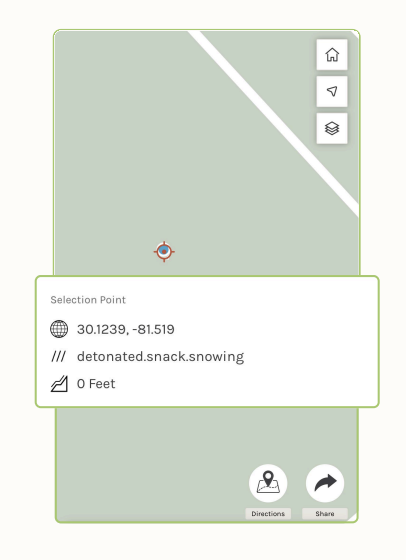
1. Discover Your Current what3words Address
Tap the blue dot that represents your current location on a map. If the blue dot is not visible, use the locate button in the upper-right corner of the map to zoom to your location. Use the on-screen buttons to quickly get directions to and/or share the point.
2. Search for a what3words Address
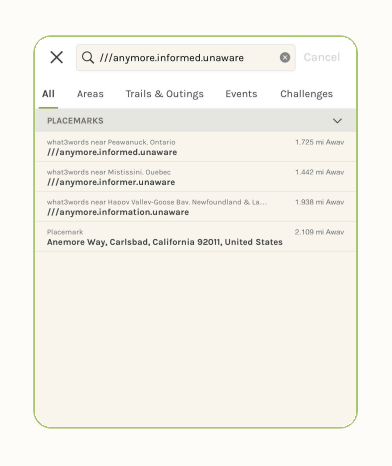
Paste or type a what3words address in the search bar and the app will suggest potential matches. Select the correct suggestion, and the map will zoom to the selection point.
3. Get the what3words Address for a Point
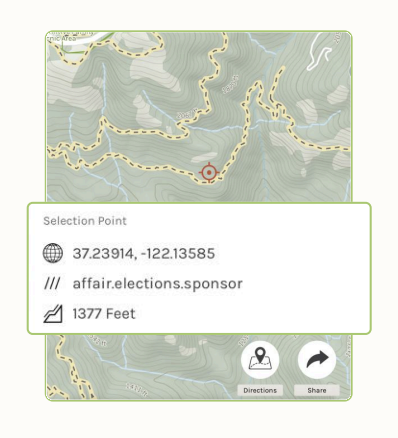
Long-press on a map to get the what3words address for the selected point. Use the buttons to quickly get directions to and/or share the point.
4. Find the what3words Address for a Point of Interest
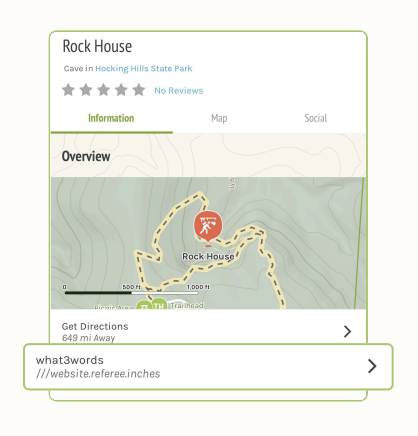
Open a point of interest’s detail screen in OuterSpatial and you’ll see its corresponding what3words address under the “Overview” map. Tap it to get directions to the address and/or share it.